
Short version: Ollama runs the model; Open WebUI gives it a ChatGPT-style interface. Two commands and one model download get you a private assistant on your own hardware. Commands below are copied from each project's README, checked on 18 September 2026.
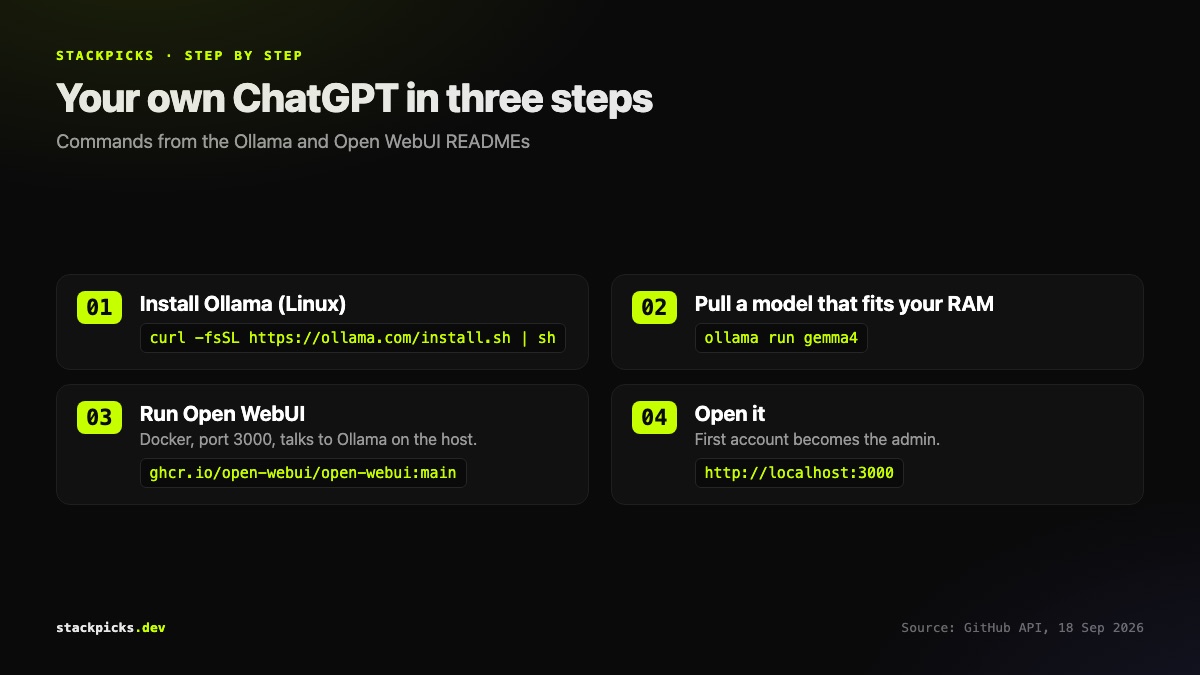
Step 1: Install Ollama
On macOS and Windows, download the app from ollama.com. On Linux:
curl -fsSL https://ollama.com/install.sh | shOllama serves models on localhost:11434, with an API other tools can call.
Step 2: Pull a model that fits your memory
ollama run gemma4That is the example in Ollama's own README. Choose the model by the memory you have, not by leaderboard: roughly 16GB handles a 7-8B model and 32GB a 30B-class model. Our guide to the best open-source LLMs to run locally covers which to pick.
Step 3: Run Open WebUI
Open WebUI runs in Docker and connects to Ollama on the host:
docker run -d -p 3000:8080 --add-host=host.docker.internal:host-gateway -v open-webui:/app/backend/data --name open-webui --restart always ghcr.io/open-webui/open-webui:mainOpen http://localhost:3000. The first account you create becomes the administrator.
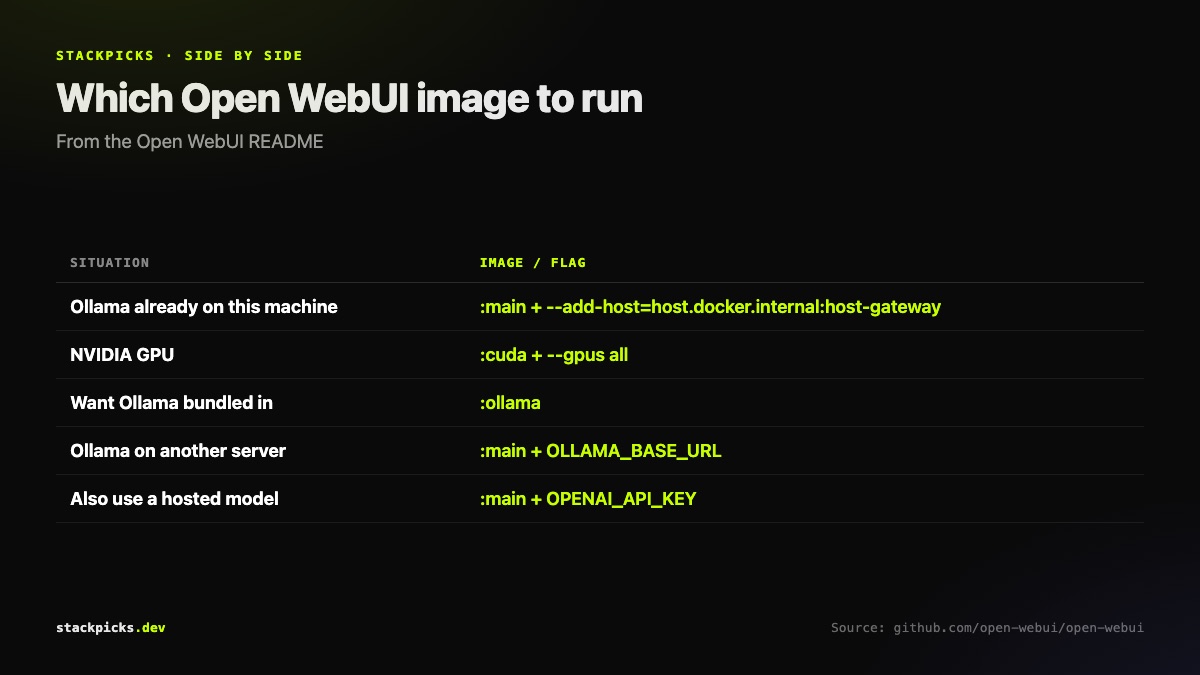
Variants worth knowing
- NVIDIA GPU: use the
:cudaimage with--gpus all. - Everything in one container: the
:ollamaimage bundles Ollama itself. - Ollama on another machine: set
OLLAMA_BASE_URLto its address. - Add a hosted model too: pass
OPENAI_API_KEYfor an OpenAI-compatible provider.
Before you share it
Keep it on your local network, or put it behind HTTPS and your own authentication before exposing it to the internet. And remember that anything sent to a connected hosted provider leaves your network; keep sensitive work on the local models.