
**Short version:** Codex CLI is OpenAI's terminal coding agent (openai/codex, Apache-2.0, about 130,000 GitHub stars). There are four official ways to install it; pick the one that matches how you already manage tools. Every command below is from the project's README.
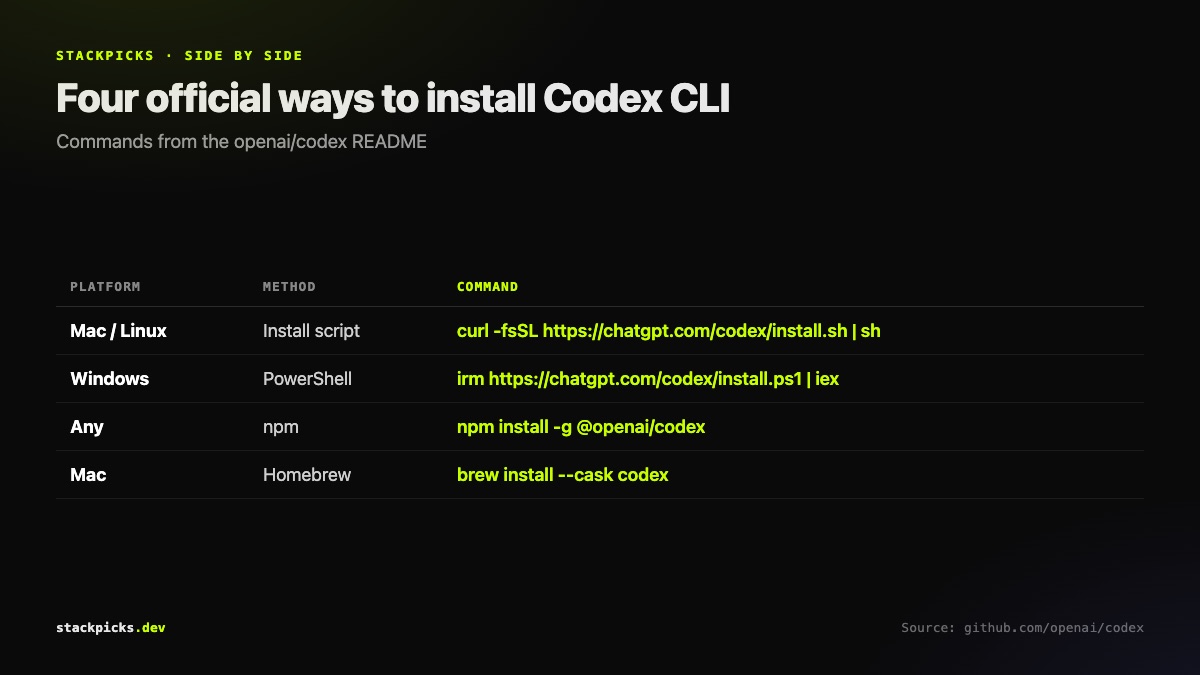
Mac and Linux: the install script
curl -fsSL https://chatgpt.com/codex/install.sh | shWindows: PowerShell
Codex has a native Windows installer. In PowerShell:
powershell -ExecutionPolicy ByPass -c "irm https://chatgpt.com/codex/install.ps1 | iex"Any platform: npm
If you already have Node.js:
npm install -g @openai/codexMac: Homebrew
brew install --cask codexPrebuilt binaries for Apple Silicon and Intel Macs and for x86_64 and arm64 Linux are also on the project's GitHub Releases page.
First run and sign-in
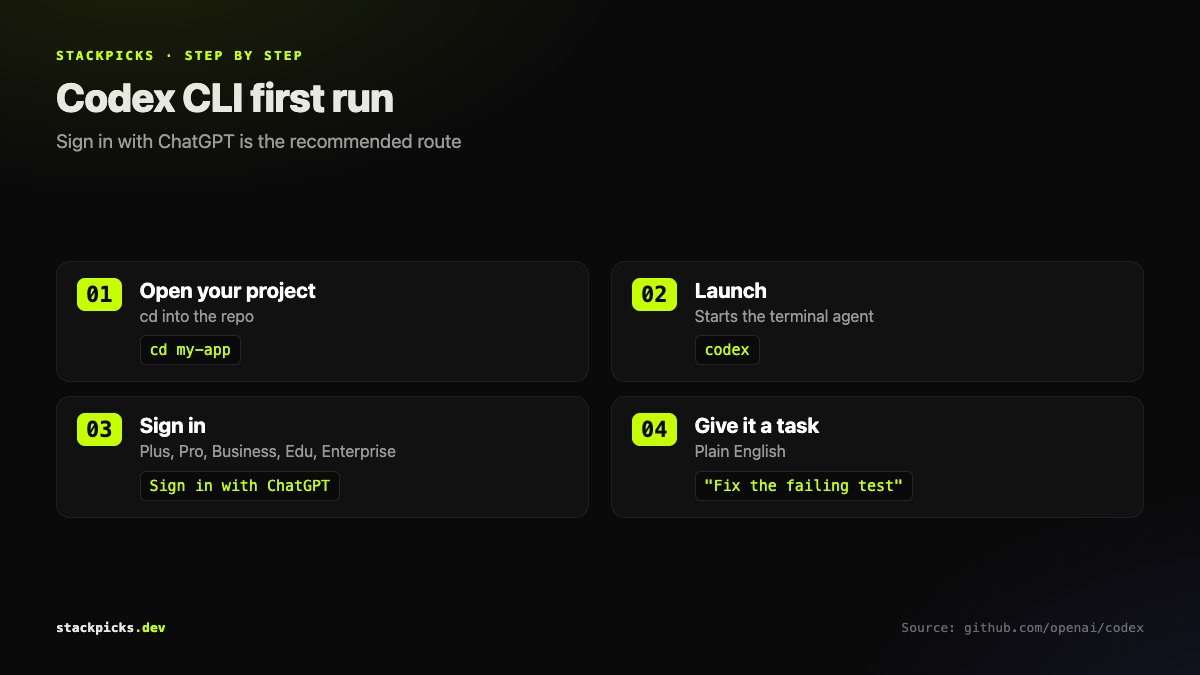
- Open a terminal in the project you want to work on.
- Run
codex. - Choose Sign in with ChatGPT — recommended for Plus, Pro, Business, Edu and Enterprise plans.
- Describe a task in plain English.
You can use an API key instead of a ChatGPT account, but the README notes it needs additional setup; billing then runs through your API account rather than your ChatGPT plan.
Fixing the common problems
- `codex: command not found` — the install location is not on your
PATH. Open a new terminal first; with npm, check that your global npm bin directory is onPATH. - npm permission errors on Mac or Linux — avoid
sudo npm install -g; use a Node version manager or the install script instead. - Script blocked on Windows — the
-ExecutionPolicy ByPassflag in the official command is there for exactly this; run it in PowerShell, not Command Prompt.
Codex or Claude Code?
Both are terminal agents that read your repo and run commands; they differ in models, pricing and how they delegate work. We compared them head to head in Claude Code vs Codex. If you want neither vendor, see open-source alternatives to Claude Code, or run models on your own machine with our local LLM for coding guide.